
Automation
Workforce
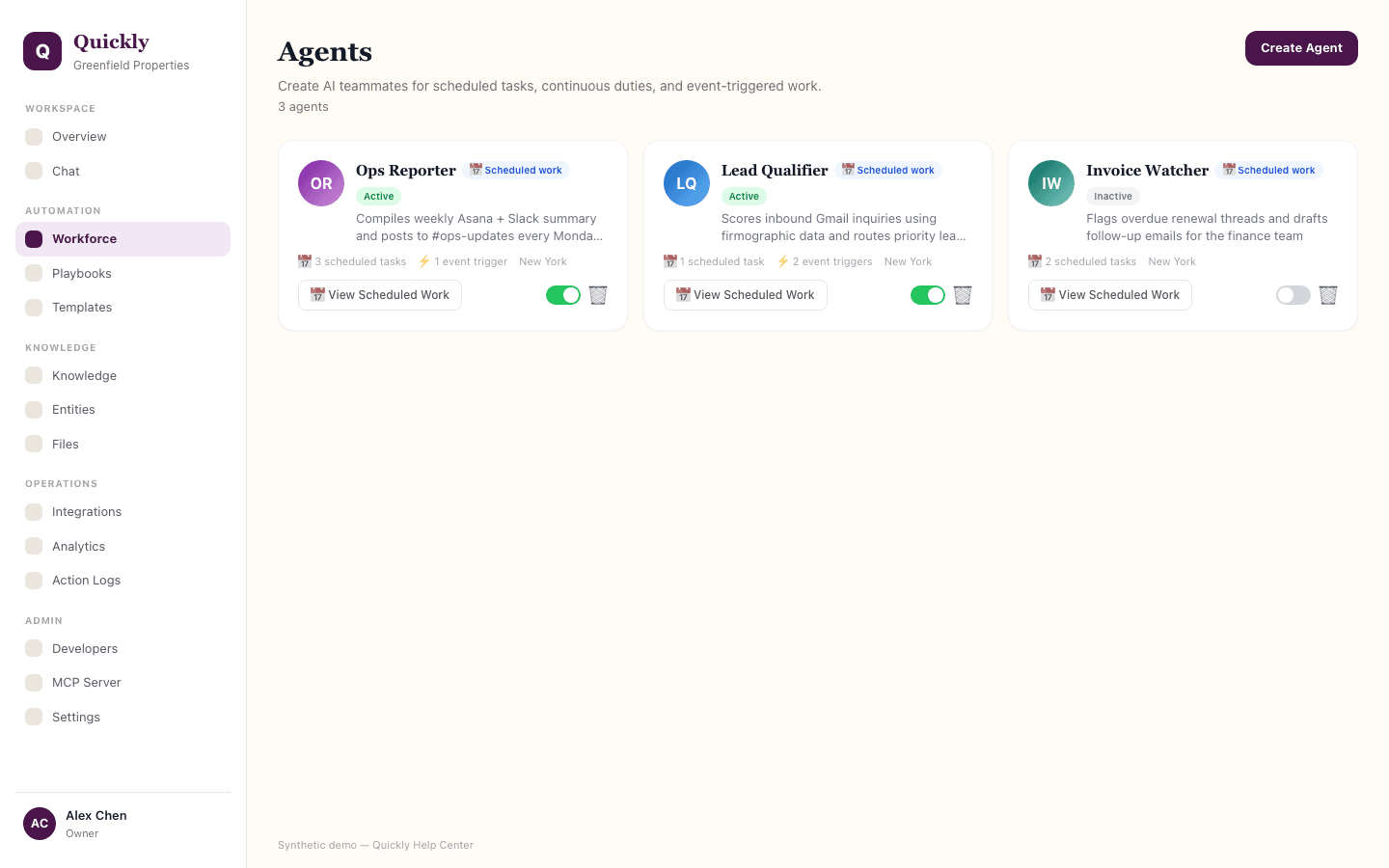
Workforce manages configured AI agents, their run-as identity, scheduled tasks, continuous duties, Gmail event triggers, memory, and provider-specific instructions.
Required tier: Capacity-based
Guides
How to create an agent
- 1Open Workforce and click + Create Agent.
- 2Name the agent after the job it owns, not a generic persona.
- 3Choose the member it runs as, then add its purpose, timezone, and provider-specific instructions before clicking Create Agent.
How to deactivate an agent
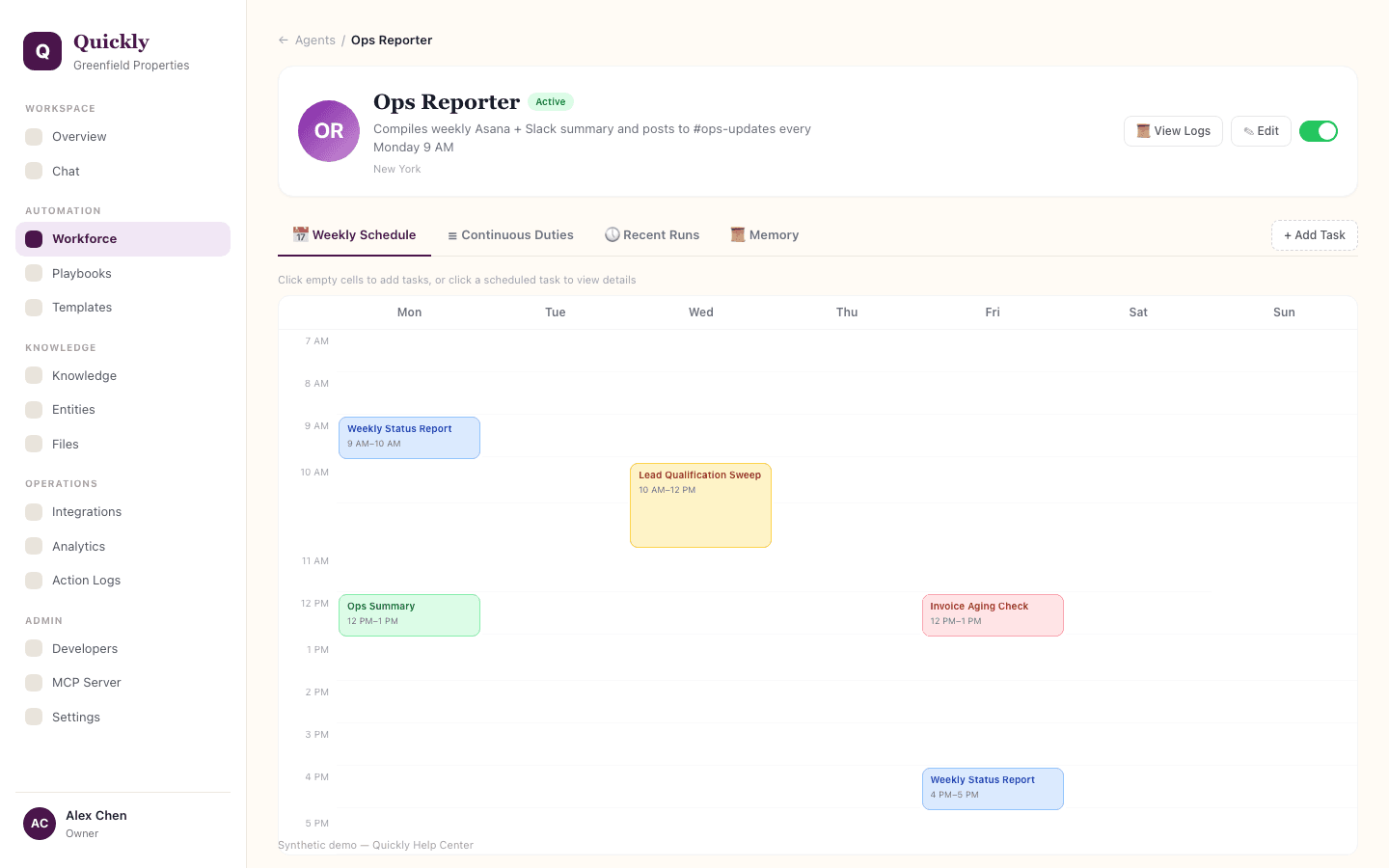
- 1Open the agent detail page.
- 2Turn off the Active toggle.
- 3Confirm scheduled work no longer runs while the agent is inactive.
How to delete an agent
- 1Open the agent detail page and review its schedules and recent runs.
- 2Remove or reassign any scheduled work first.
- 3Click Delete only when the agent and its scheduled tasks are no longer needed for active operations.
How to assign a scheduled task
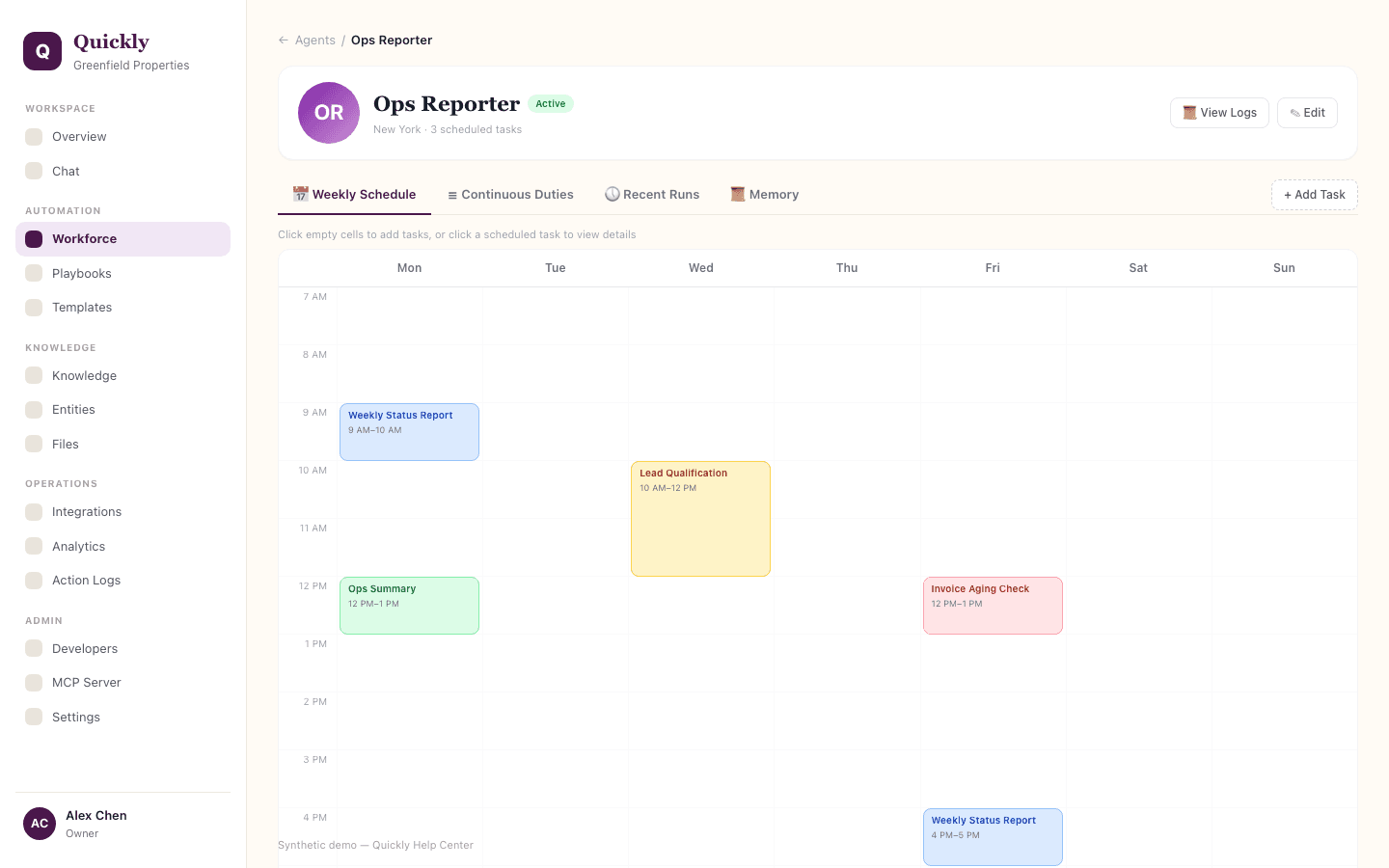
- 1Open the agent and click View Schedule.
- 2On Weekly Schedule, click Add Task or an empty calendar cell, then choose the active playbook the agent should run.
- 3Set the schedule window, save it, and confirm the scheduled task appears on the grid.
How to add continuous or Gmail-triggered work
- 1Open the agent and choose Continuous Duties or Event Triggers.
- 2Click Add Task, then choose Continuous for a minute-based interval or Gmail for Gmail label polling when your plan supports it.
- 3Choose an active playbook, save the task, and check the next expected run time.
How to customize an agent with memory
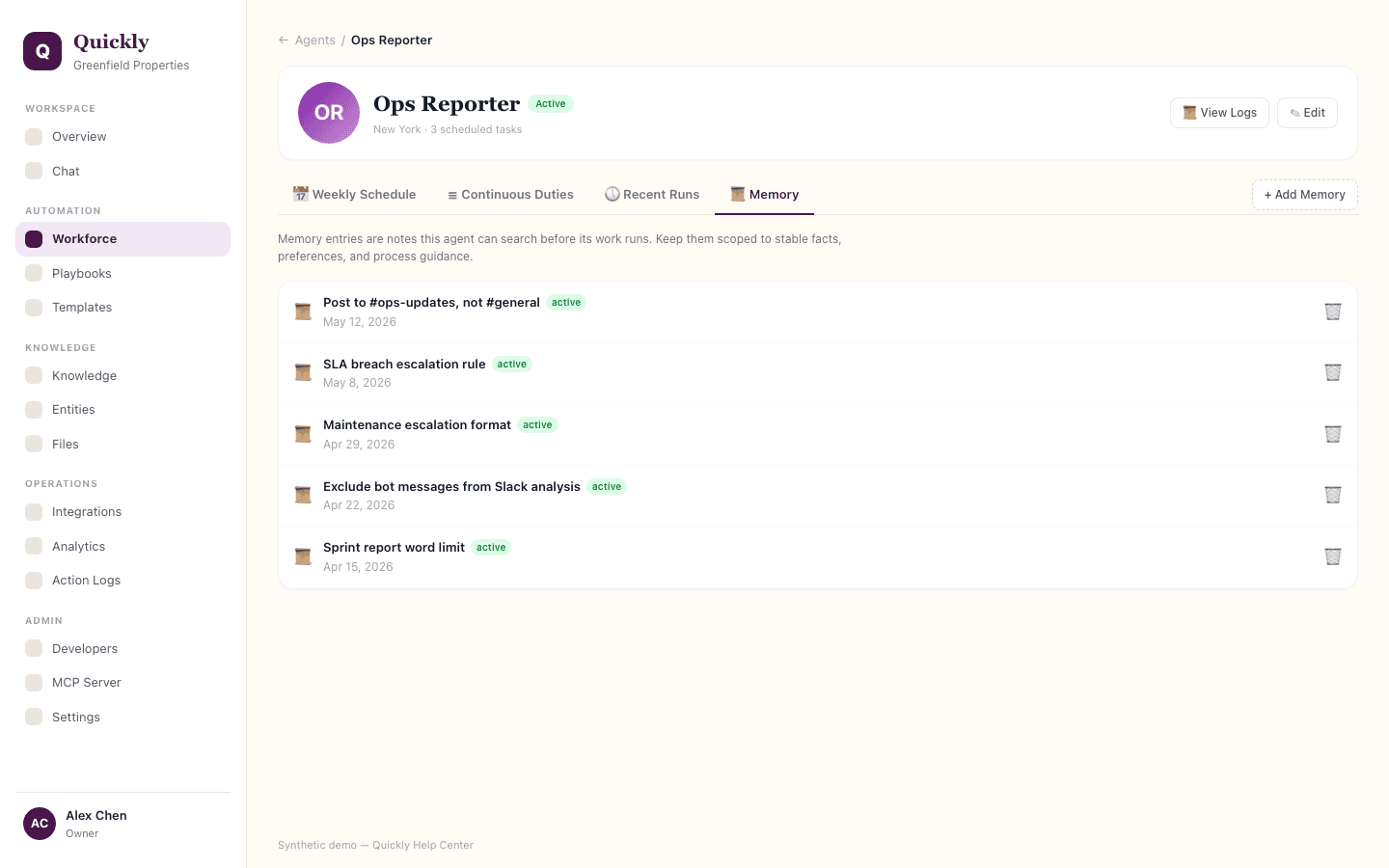
- 1Use the agent purpose and provider-specific instructions for stable guidance that shapes the agent without overriding safety or tool policy.
- 2Open the Memory tab and click Add Memory to add a title and content this agent can search before interactions.
- 3Review and delete stale memory entries periodically so outdated guidance does not accumulate.
How to review agent logs
- 1Open the agent detail page or Action Logs.
- 2Filter for the agent or its scheduled runs.
- 3Inspect tool calls, failures, approvals, and outputs before changing instructions.
Workforce controls are limited to roles that can manage automation.