
Automation
Playbooks
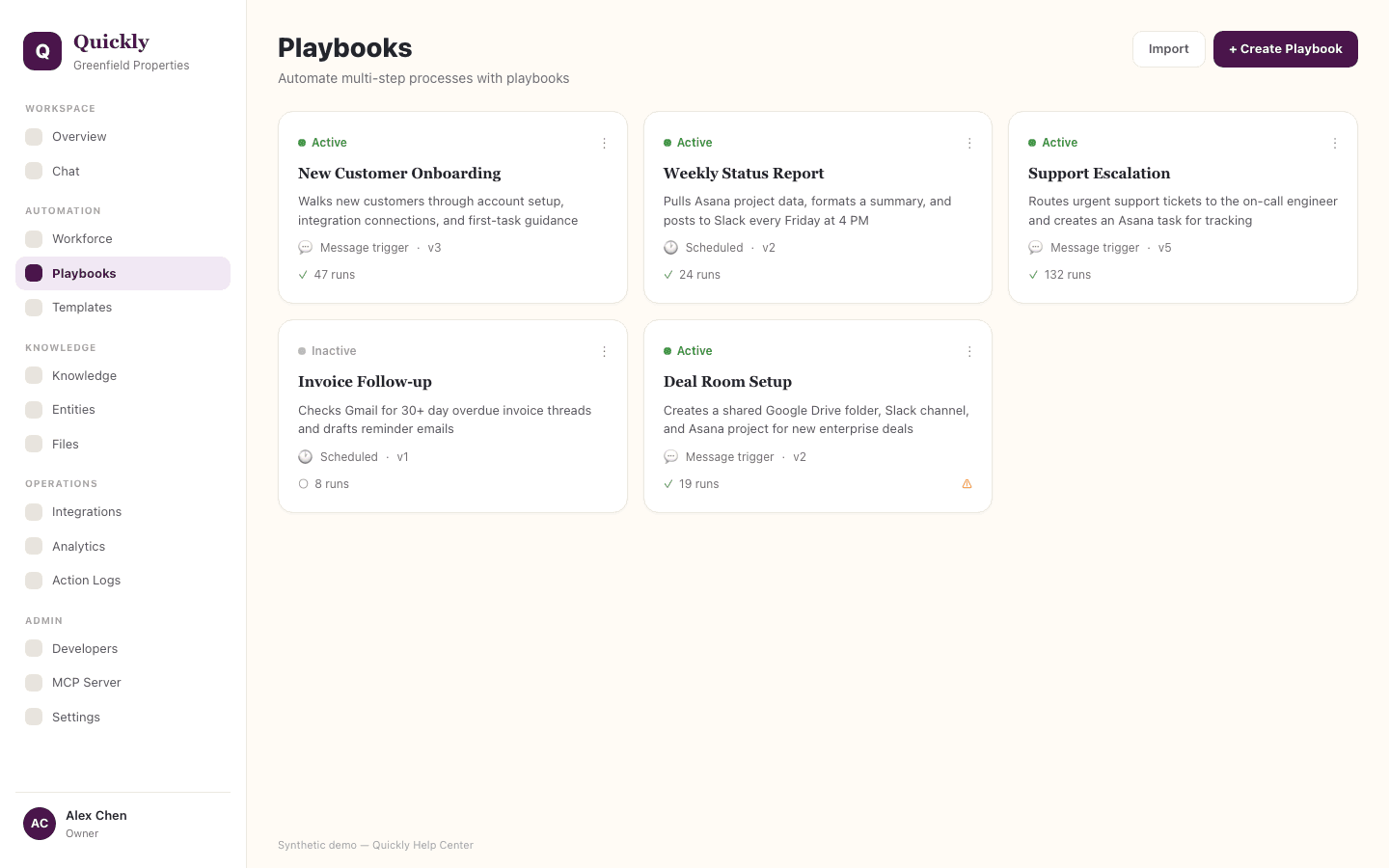
Playbooks are reusable workflow recipes that turn repeated operational processes into structured flows. Members can review them, while creation and changes require Manager or Admin access.
Required tier: Capacity-based
Guides
How to create a playbook
- 1Click Create Playbook and choose whether to create with Quickly Chat or start a blank inactive draft in Studio.
- 2Choose the live trigger model the workspace supports, such as manual, message, web form, or scheduled execution.
- 3Treat Voice and SMS triggers as telephony-gated: they require live telephony setup before they can receive live traffic.
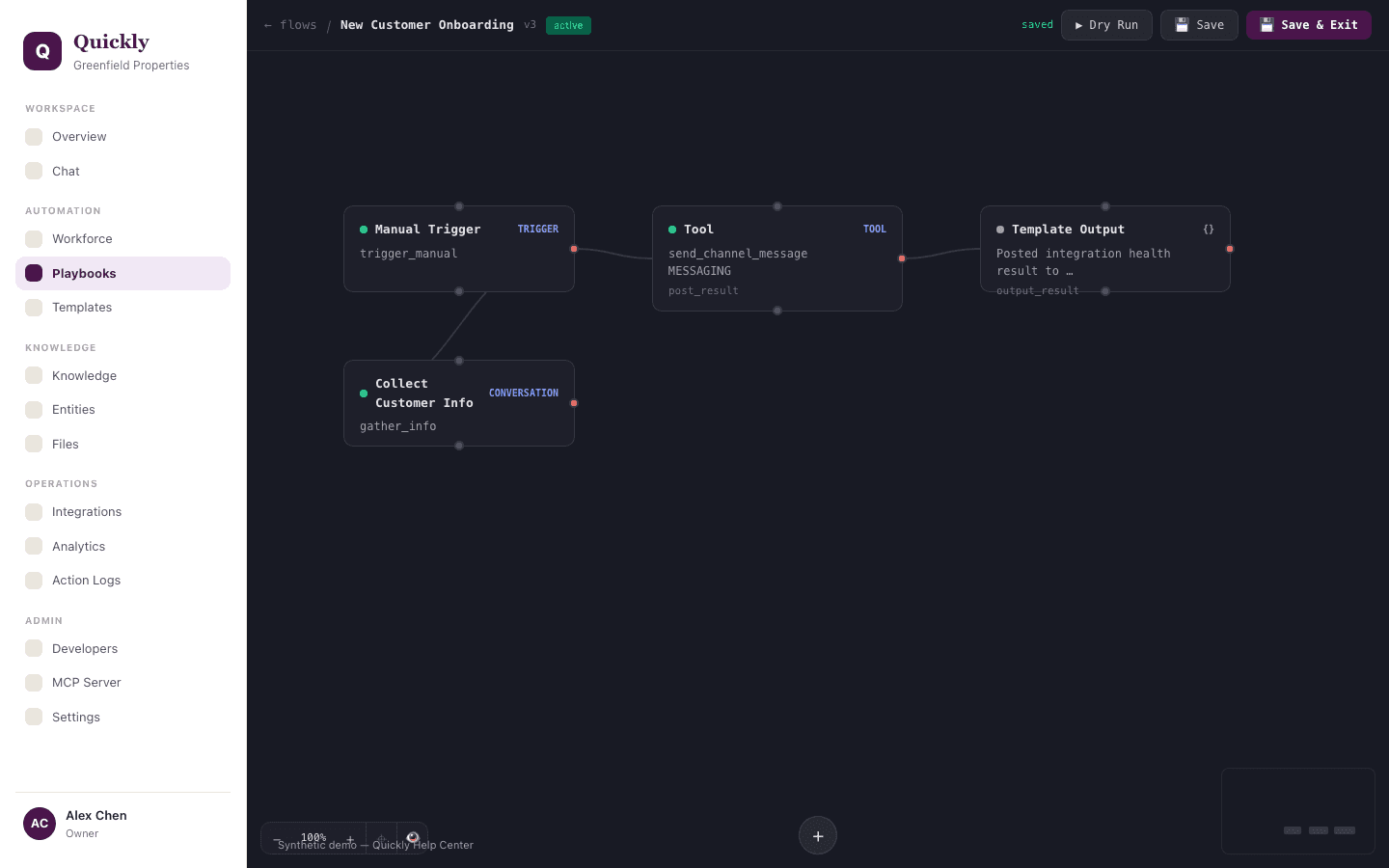
- 4Add the minimum nodes needed to collect information, do the work, and return an output.
How to use trigger nodes
- 1Choose the event that starts the workflow.
- 2Define any input values the trigger provides.
- 3Connect the trigger to the first work node.
How to use conversation and human input nodes
- 1Use conversation nodes to collect missing fields from the user.
- 2Use human input nodes when the workflow needs approval or judgment.
- 3Expect the run to pause and resume after the user responds.
How to use agent and tool nodes
- 1Use agent nodes when the step needs reasoning, research, browser work, or multiple tools.
- 2Use tool nodes when the step should perform one specific integration action.
- 3Feed prior node outputs into the agent or tool so it has the right context.
How to use condition and intent nodes
- 1Use condition nodes for explicit rules such as approved vs. rejected or urgent vs. normal.
- 2Use intent nodes when the next path depends on what the user meant.
- 3Connect each branch to the next node that should run for that outcome.
How to pass data between nodes
- 1Use outputs from earlier nodes as inputs to later nodes.
- 2Keep field names clear so downstream nodes can reference the right value.
- 3When a later node behaves incorrectly, inspect the upstream node result first.
How to review a playbook run
- 1Open the run history or Action Logs.
- 2Check which node completed, suspended, failed, or skipped.
- 3Use the node result to decide whether to edit instructions, input mapping, or branch logic.
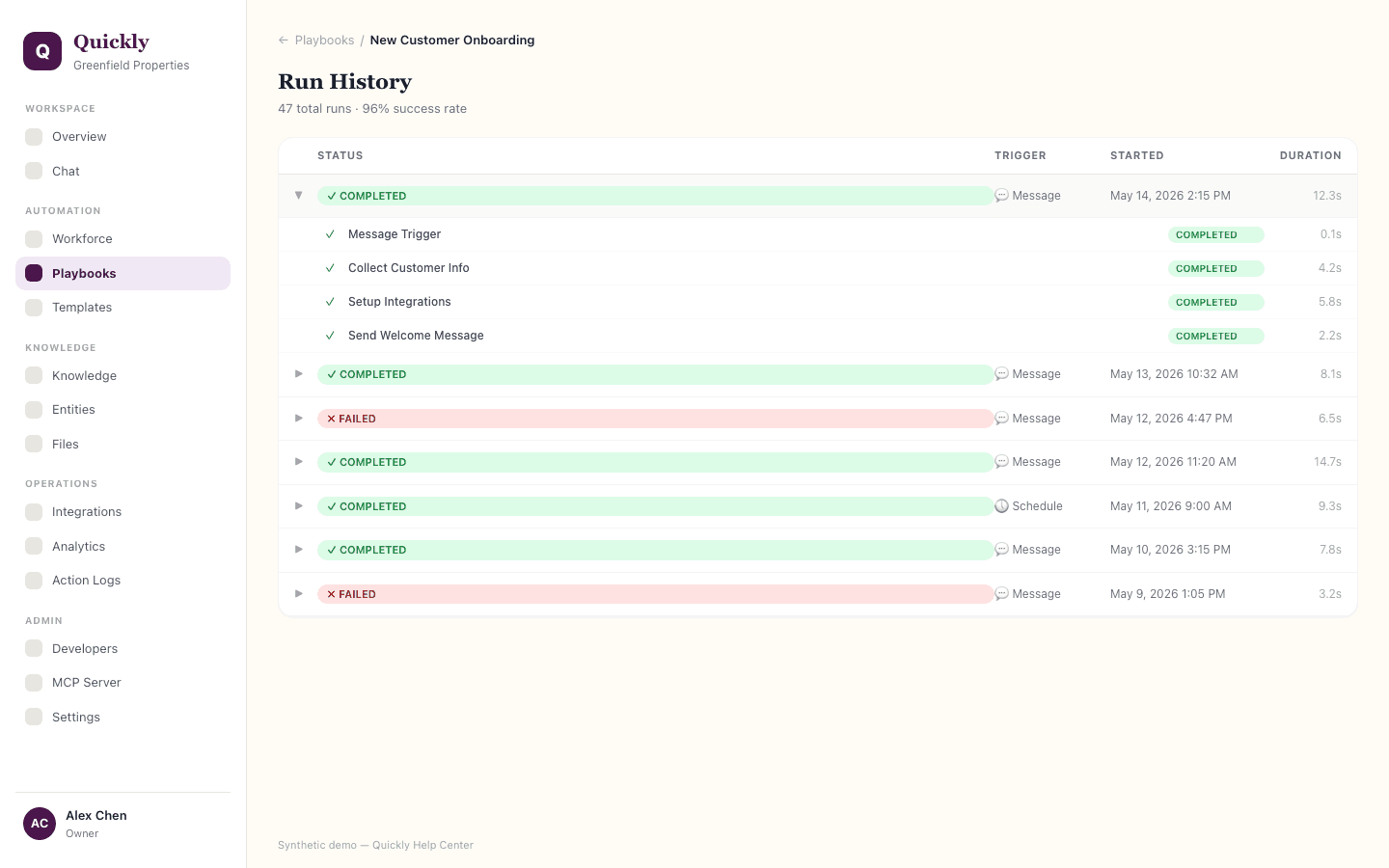
Workflow execution history is visible through Action Logs and workflow run details.
Plan capacity controls how many playbooks a workspace can keep.
Members can review and export playbooks, but Manager or Admin access is required to create, edit, activate, delete, or import them.