
Knowledge
Knowledge
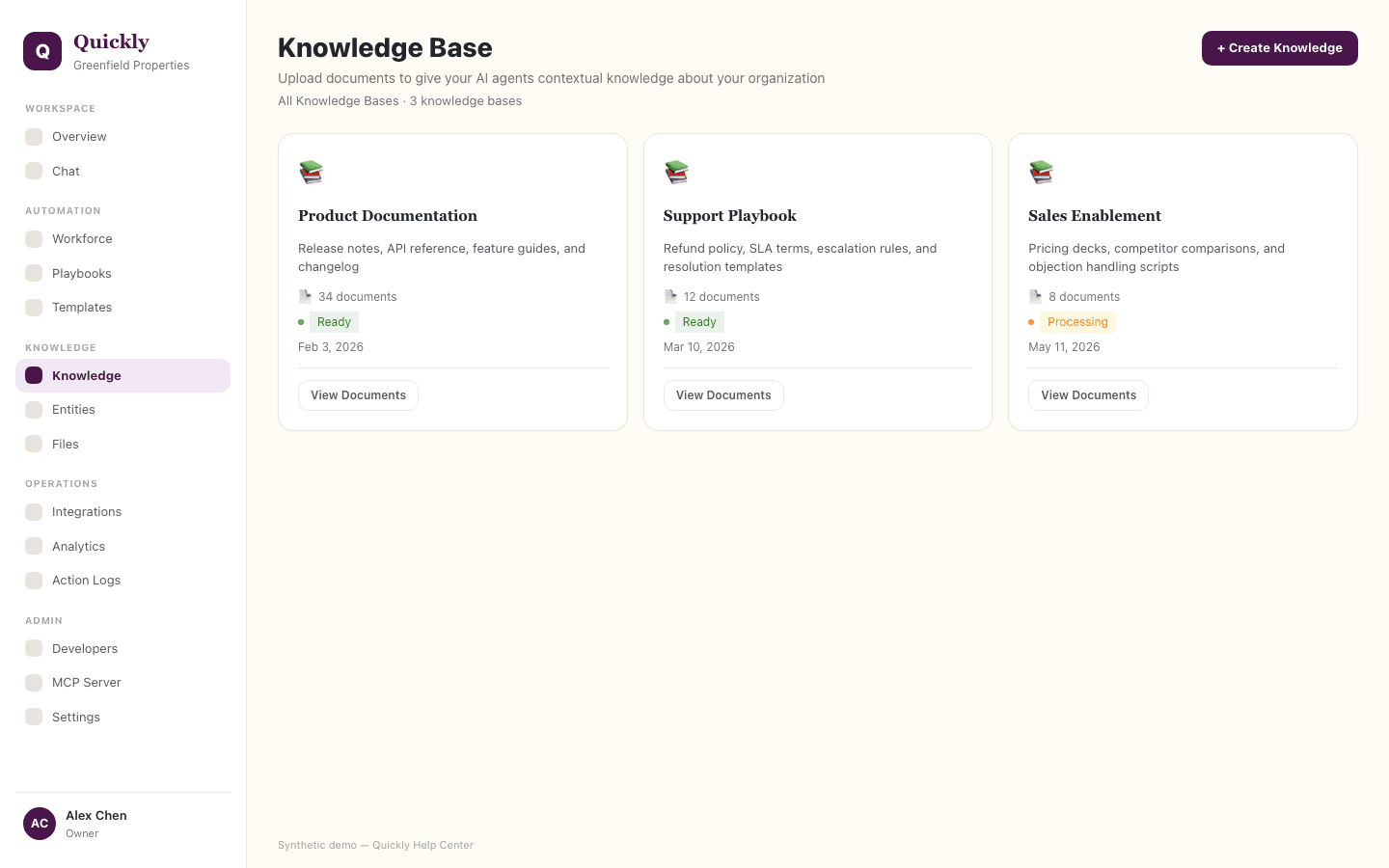
Knowledge stores workspace source material that Quickly can search and cite while answering questions or completing tasks. Members can review visible material; Manager, Admin, or Owner access is required to manage bases and documents.
Required tier: Capacity-based
Guides
How to create a knowledge base
- 1Ask a Manager, Admin, or Owner to click + Create and choose a base for one audience, process, or topic.
- 2Use a clear name and description such as "Support refund policy" or "Enterprise onboarding docs".
- 3Avoid mixing unrelated departments or customers in one base.
How to upload and prepare documents
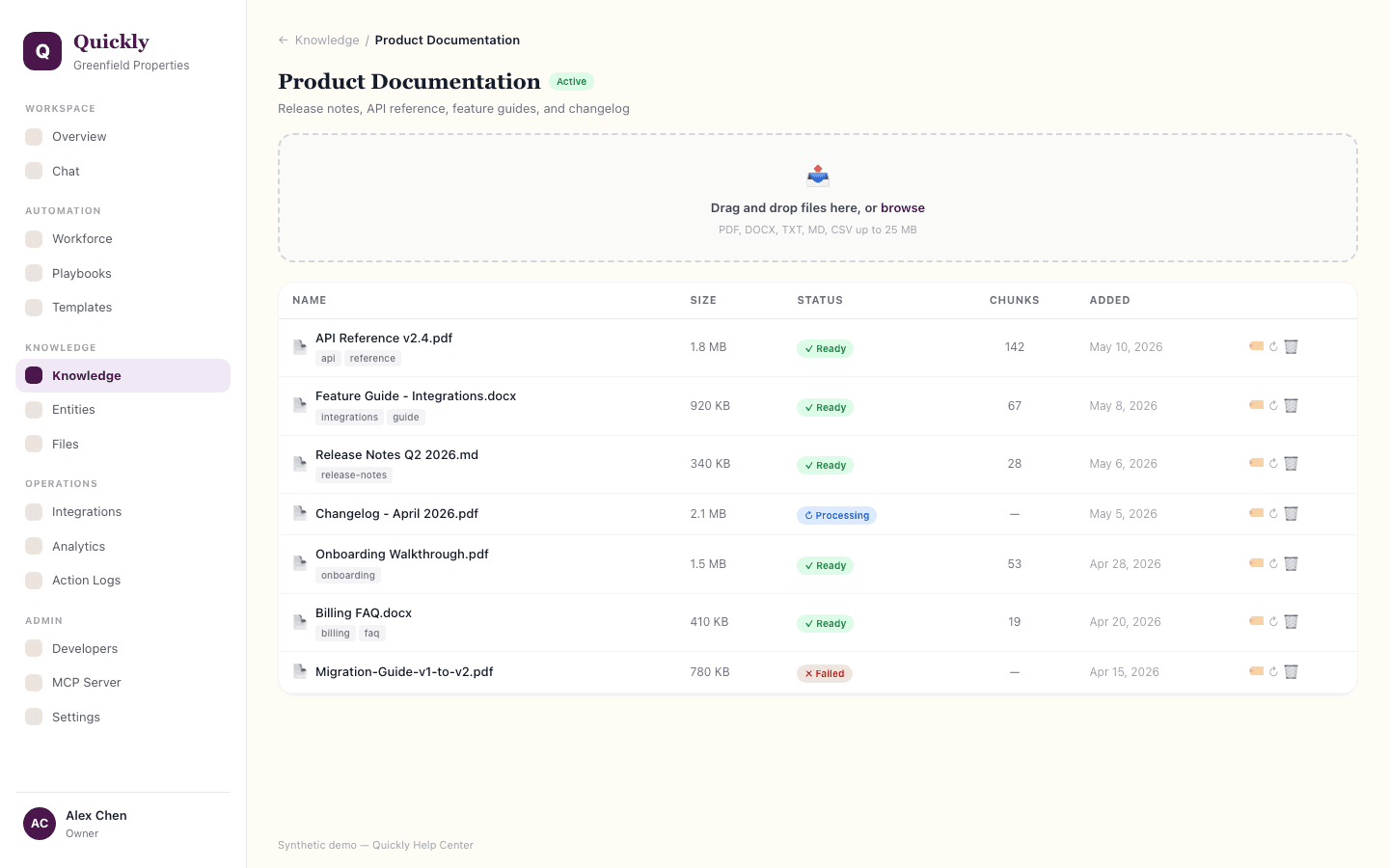
- 1Managers, Admins, and Owners can drag files into the upload zone or click browse to select them when Knowledge write capacity is available.
- 2Wait until the document status shows Ready.
- 3Fix or remove files marked Failed before relying on the base.
How to understand knowledge search
- 1Quickly breaks large documents into smaller passages.
- 2When a user asks a question, Quickly finds passages that are closest to the meaning of the question.
- 3The answer is stronger when the base contains clean, specific, non-conflicting source material.
How to use tags and labels
- 1Managers, Admins, and Owners can add tags your team would naturally use: product names, regions, plan tiers, teams, policy types, or customer segments.
- 2Use tags to help Quickly find relevant material even when a user does not ask with exact document wording.
- 3Split or retag documents when searches bring back the wrong source.
How to test a knowledge base
- 1Ask realistic questions in Chat after documents are Ready.
- 2Check whether the answer uses the expected source material.
- 3If answers are noisy, remove duplicates, archive stale docs, or narrow the base.
How to use knowledge in playbooks and agents
- 1Attach the relevant base to the workflow or agent context.
- 2Use it when repeatable work needs source-backed answers or document-specific extraction.
- 3Review outputs periodically when source documents change.
Knowledge availability is governed by workspace storage, document, ingestion, and chunk capacity.
Members can review Knowledge that is visible to the workspace. Manager, Admin, or Owner access is required to create bases, upload content, tag documents, move documents, replace documents, or delete Knowledge assets; write capacity gates new and replacement content.